AWS Deployment
Provides instructions for deploying the park_pass_cf.yml CloudFormation template
into a customer AWS account.
Provision CloudFormation Stack
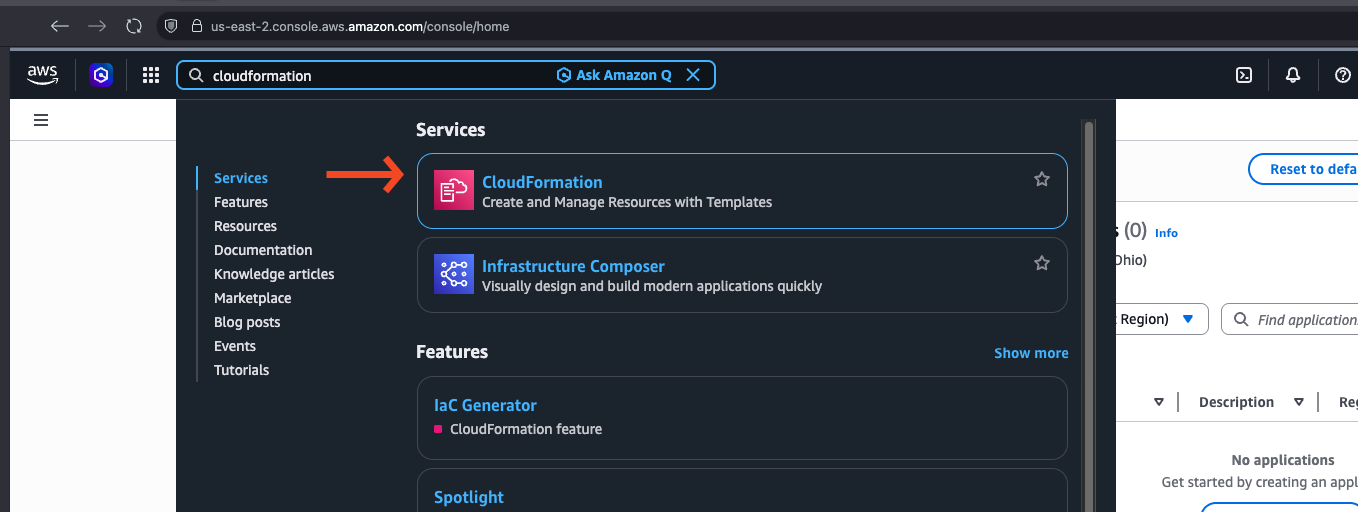
Step 1 — Navigate to CloudFormation
Using the search bar at the top of the AWS Console, type CloudFormation and select it from the list of services.
Step 2 — Create Stack
From the main CloudFormation page, select Create stack → With new resources (standard).

Step 3 — Specify Template
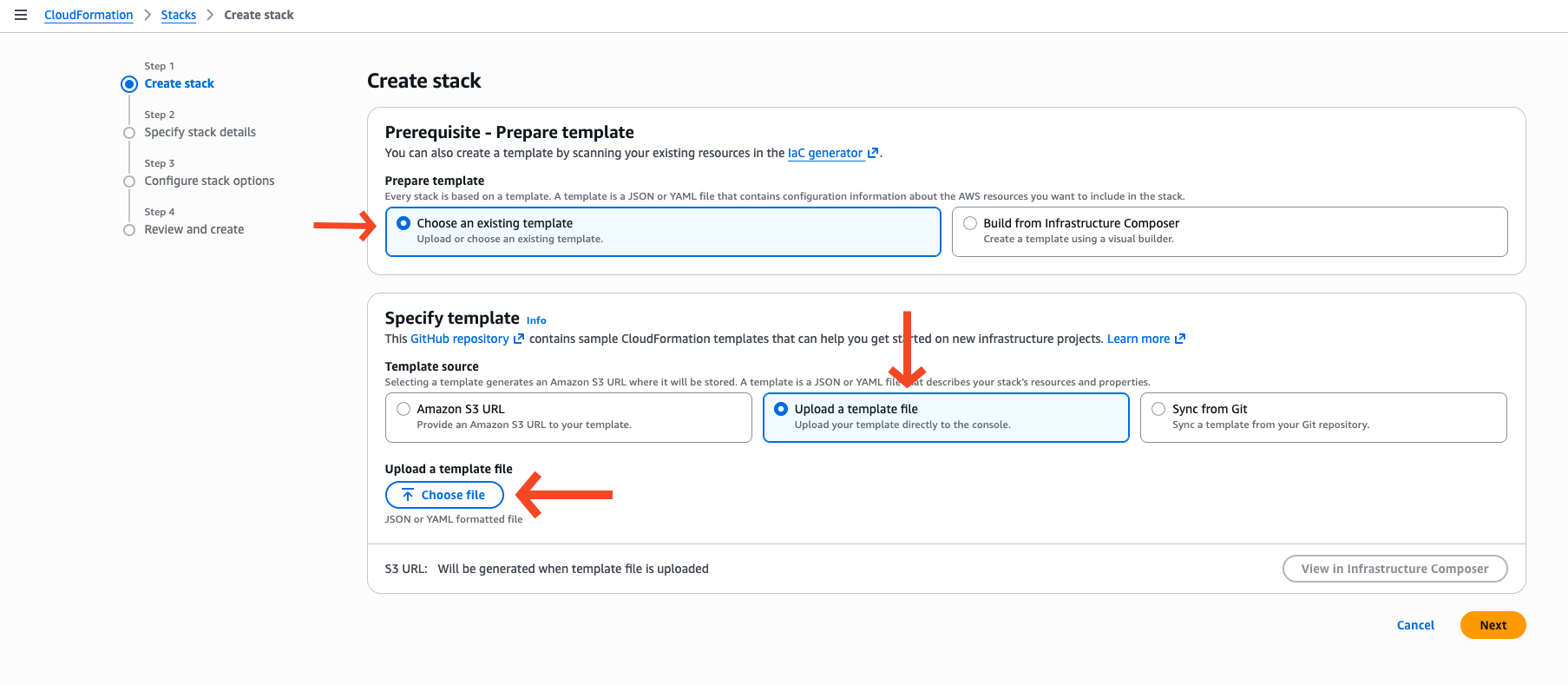
On the Create stack page:
- Under Prepare template, select Choose an existing template
- Under Specify template, select Upload a template file
- Click Choose file and select
park_pass_cf.ymlfrom disk - Click Next
Step 4 — Specify Stack Details
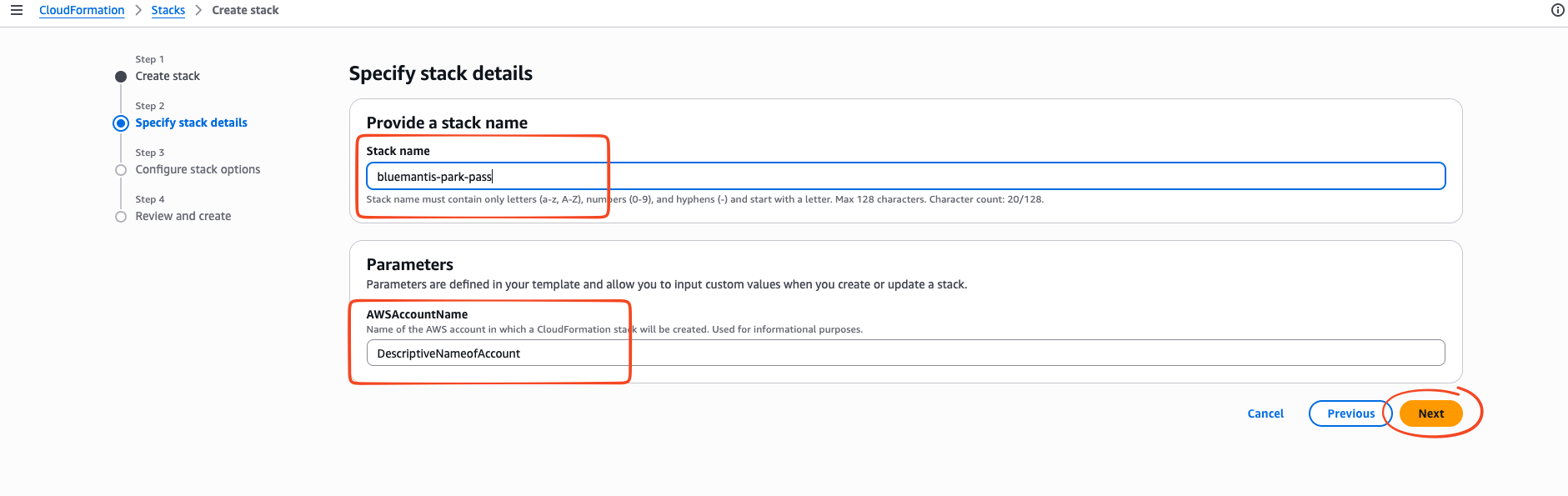
On the Specify stack details page, set the stack name and supply all required parameters.
Stack name: bluemantis-park-pass
Note
The stack name is a label you select to uniquely identify the stack, making it easy to recognize and helping prevent accidental deletion.
Parameters:
| Parameter | Value |
|---|---|
AWSAccountName |
AWS account name |
Note
The AWSAccountName parameter is a friendly name that is used to identify the
account in the CCA system. It has no functional impact on the provisioned resources
Click Next.
Step 5 — Configure Stack Options
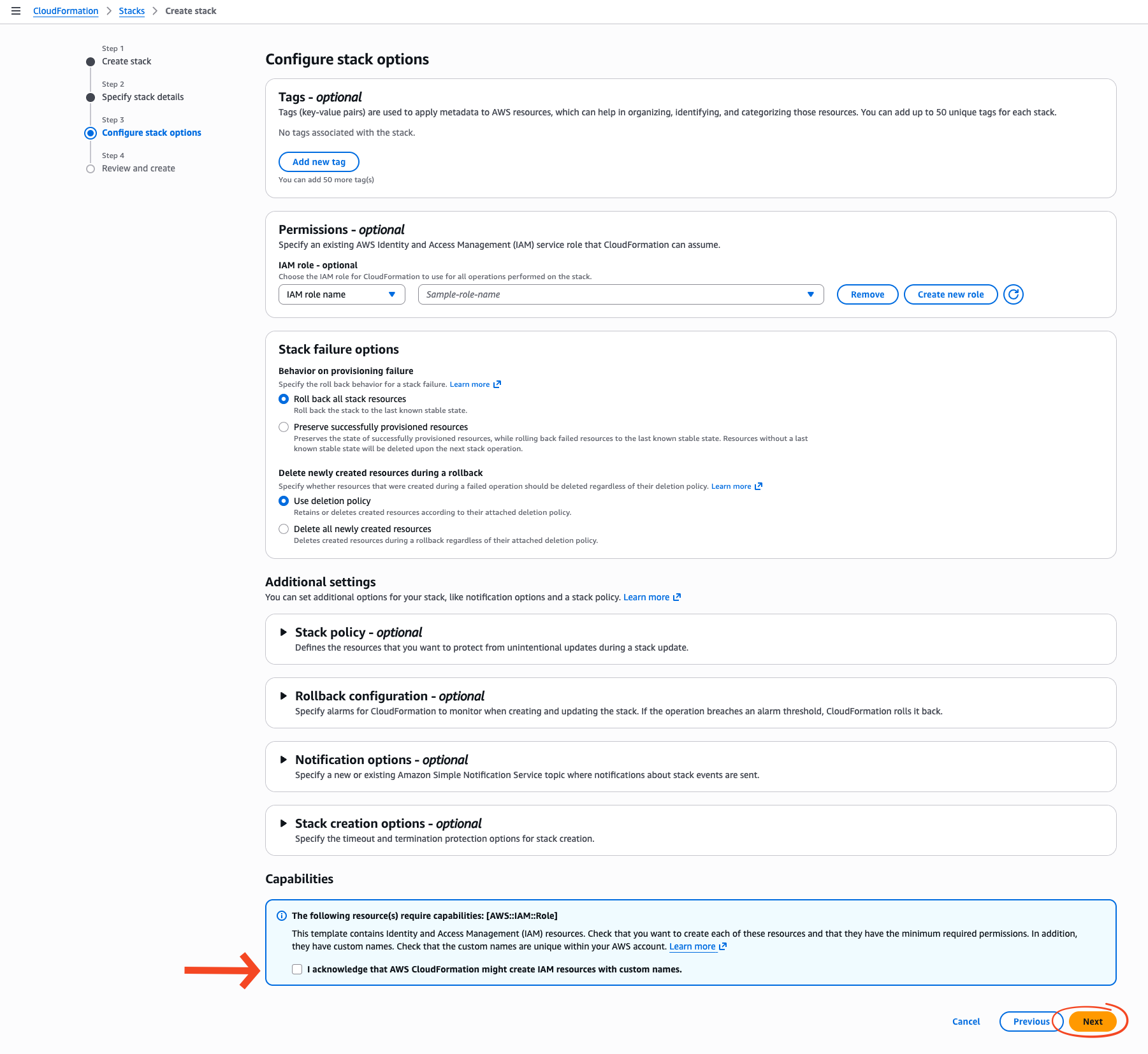
Leave all options on the Configure stack options page at their defaults.
At the bottom of the page, check the acknowledgement box confirming that CloudFormation may create IAM resources on your behalf, then click Next.
Info
This acknowledgement is equivalent to passing --capabilities CAPABILITY_NAMED_IAM
on the command line. It is required because the template creates an IAM role.
Step 6 — Review and Submit
On the Review and create page, verify that the stack name and all parameters are correct, then click Submit.
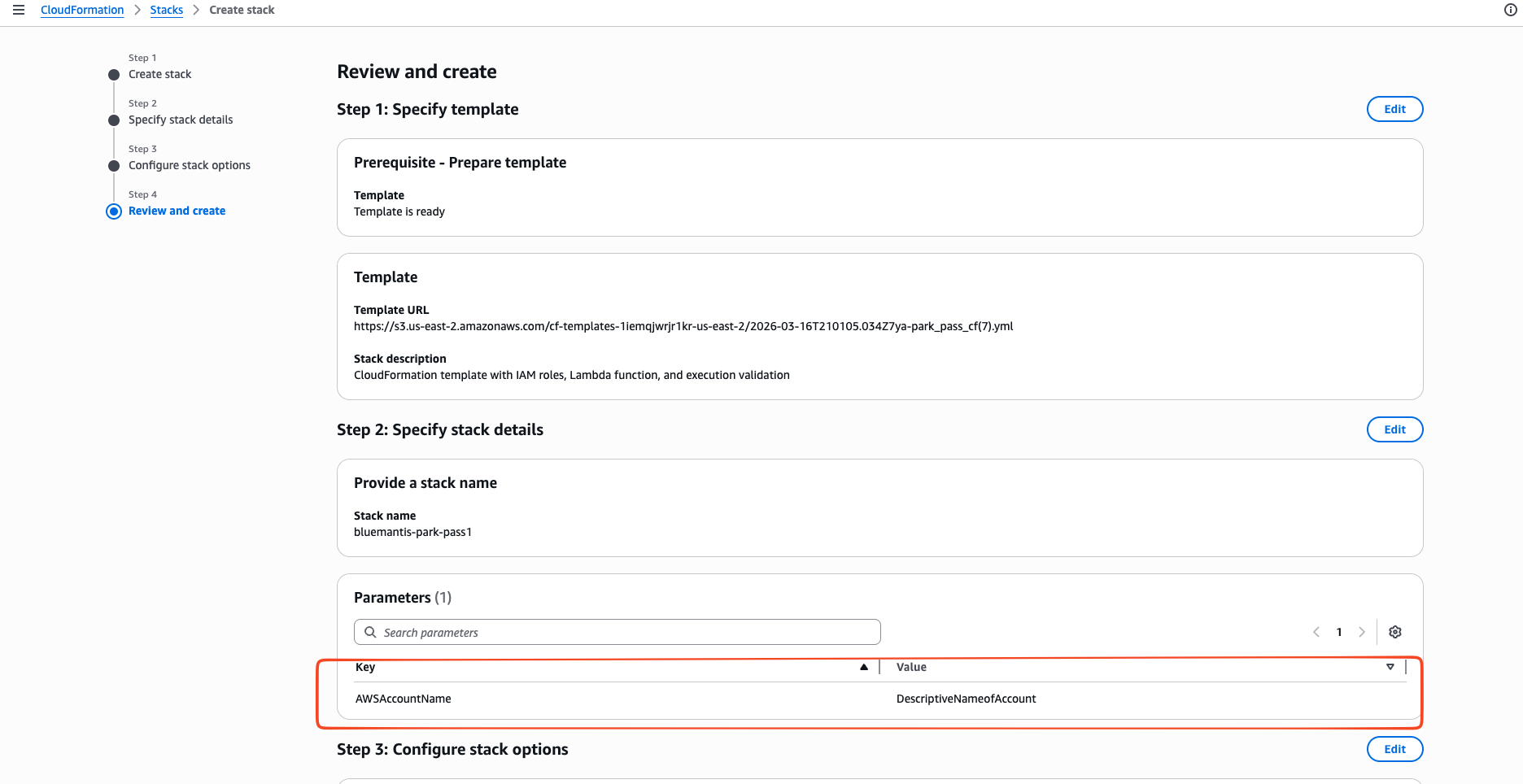
CloudFormation will begin provisioning the stack. You can monitor progress from the Events tab on the stack detail page.
Prerequisite
AWS CLI v2 must be installed and configured with credentials that have permission to create CloudFormation stacks and IAM resources.
aws cloudformation create-stack \
--stack-name bluemantis-park-pass \
--template-body file://park_pass_cf.yml \
--parameters \
ParameterKey=AWSAccountName,ParameterValue='REPLACEME',UsePreviousValue=false \
--tags \
Key=Owner,Value=innovationlab@bluemantis.com \
Key=Application,Value=bluemantis-tps-park-pass \
--capabilities CAPABILITY_NAMED_IAM \
--disable-rollback
Info
--capabilities CAPABILITY_NAMED_IAM grants a capability required by IAM
resources in the CloudFormation template, regardless of the permissions of the
user executing the command.